3. If this is the first time that you have configured a modem in this computer, you will be prompted for location information. If so,
complete this information and select OK. The Phone & Modem dialog box will open to the Dialing Rules tab.
Caution: Ne glecting to complete the location information will cause your modem to function improperly.
4. Select the Modems tab.
5. Choose the modem you have just installed and click on Properties. The properties dialog box for your modem will open.
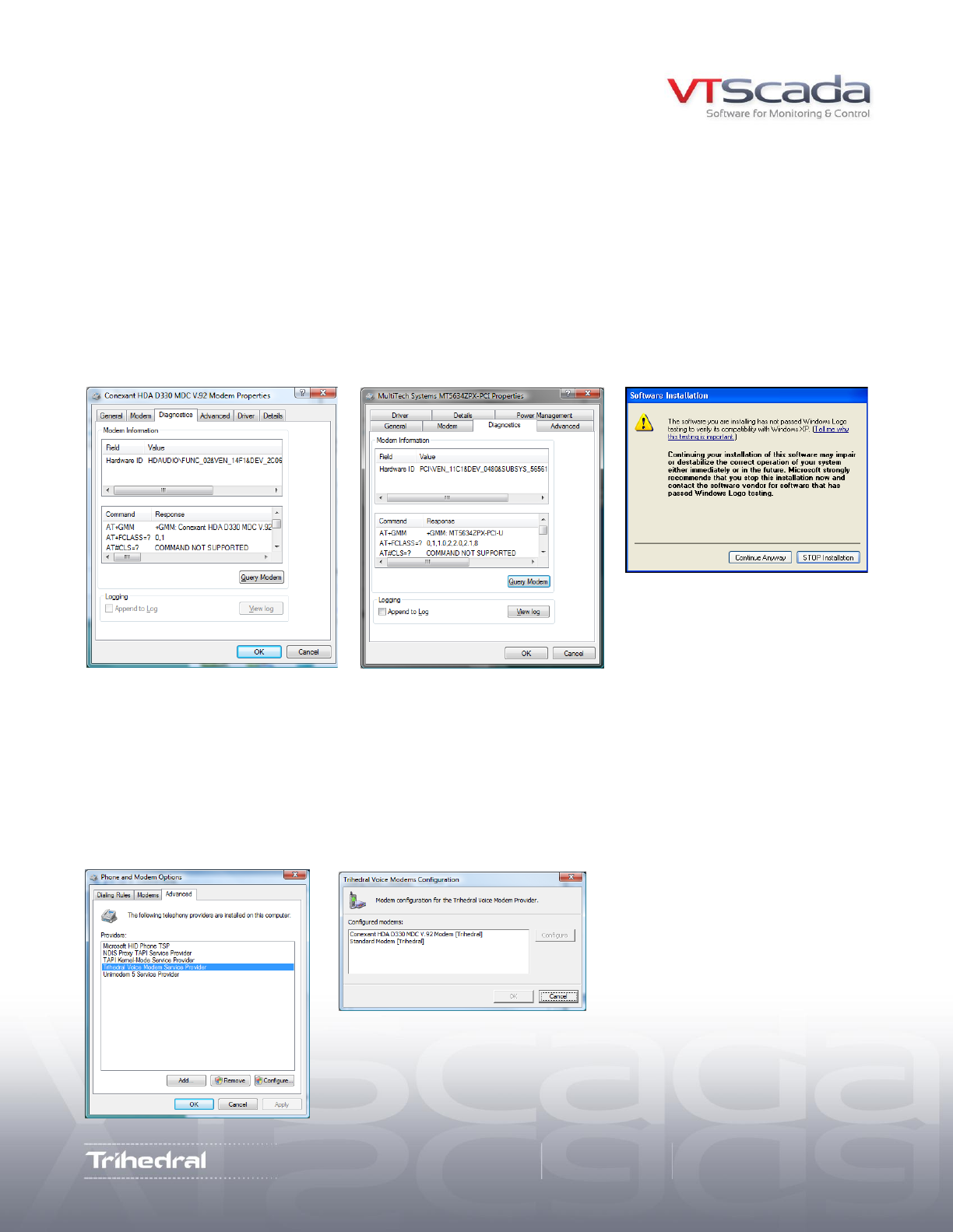
6. Select the Diagnostics tab and click on the Query Modem button. When your modem responds, you will see a set of modem
commands and responses as shown below. A modem that is correctly configured for voice will include a comma followed by the
number eight (i.e. ,8) within the responses from either the AT+FCLASS=? command or the AT#CLS=? command.
Note: If neither response includes an ‘,8’ then it is not a voice modem. You will need to start over with an actual voice modem
7. Close Phone & Modem Options.
3: Install the VTScada modem driver and service provider
Install and start VTScada. Upon VTScada startup, the program will recognize that a new device was installed and attempt to
install a wave bus enumerator, a voice modem wave device and a modem TSP (Telephony Service Provider). Depending on the
settings of your operating system, you might be prompted with a ‘Found new Hardware’ popup. If so:
1. Select ‘Install Automatically’ when prompted. Click 'Next'
2. Select ‘Not this time’ when prompted to connect to Windows Update. Click 'Next'.
As part of this installation, you will see a popup titled ‘Software Installation.’ Select ‘Continue Anyway’ to allow installation.
Note: DO NOT sele ct ‘STOP I nst allation’ or the VTS cada modem drivers will not be i nstalled.
Correct: AT+FCLASS=? Includes ‘,8’
May appear during modem driver install.
Incorrect: The Responses do not include ‘,8’
Your new modem must be listed.
Select ‘Trihedral Voice Modem Service Provider’.
Kommentare zu diesen Handbüchern